Why block updates at all
After macOS 26 came out, the update nag kept popping up every few days. I kept worrying I’d slip and hit “Update Now”, confirmation or not. It got frequent enough that I wanted a fix that sticks.
My reasons, plainly:
- The red badge drives me crazy
- Older machines don’t handle the new system well, and I don’t want the slowdown
- I need a stable work setup, and an upgrade breaking my dev environment is not worth the risk
- I dislike the liquid glass look in macOS 26, and some apps may not be compatible yet
So after upgrading to macOS 15.7.3, I decided to block macOS updates completely and get rid of the badge.
The methods below still work on macOS 26 (Tahoe) in 2026, but honestly, the newer the system, the more stubborn the update nag is. Blocking hosts makes the download fail, but it doesn’t always kill the badge cleanly. So I split this into two layers: hosts as a fallback, and a configuration profile for the real fix (the recommended, low-effort approach in 2026).
Step 1: Turn off automatic updates in System Settings
- Open System Settings → General → Software Update
- Click the ⓘ icon on the right
- Turn off “Automatically keep my Mac up to date”
Step 2: Block updates via hosts
This stops your Mac from reaching the macOS update servers. Edit the hosts file:
sudo vim /etc/hosts
Append these lines:
127.0.0.1 swscan.apple.com
127.0.0.1 swdist.apple.com
127.0.0.1 swdownload.apple.com
127.0.0.1 swcdn.apple.com
127.0.0.1 updates-http.cdn-apple.com
127.0.0.1 updates.cdn-apple.com
127.0.0.1 gdmf.apple.com
127.0.0.1 xp.apple.com
127.0.0.1 mesu.apple.com
Then flush the DNS cache:
sudo dscacheutil -flushcache
sudo killall -HUP mDNSResponder
Step 3: Get rid of the red badge
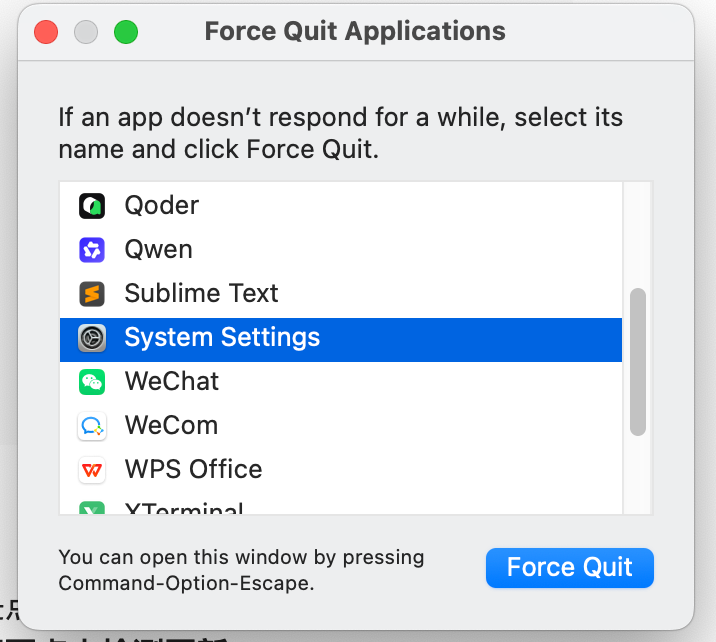
After the previous step, you’ll still see the macOS 26 update prompt, but clicking update will fail. At that point, click update, and in the dialog that appears, do not click “Check for Updates”. Then press command+option+esc to open Force Quit, force quit System Settings, and the badge disappears.
The limits of the hosts approach
One thing to be honest about: from macOS 15 (Sequoia) through 26 (Tahoe), Apple has made update detection and notifications increasingly stubborn. The hosts block above stops the upgrade package from downloading, but the badge and the “Upgrade to macOS Tahoe” prompt can still reappear, especially after a background daemon does a scheduled check. If the badge keeps coming back every few days, skip to Step 4 and use a configuration profile. That’s the clean fix.
Step 4 (recommended in 2026): Use a configuration profile to hide the upgrade
This is what the community (r/macsysadmin, Jamf, Daring Fireball, etc.) converged on in 2026, and honestly it’s the least effort. The idea is to install a “software update deferral” profile so the macOS 26 upgrade entry simply disappears from the Software Update screen, badge included. You don’t need enterprise MDM for a personal Mac. You can build a .mobileconfig yourself and install it.
The two keys that matter in the Restrictions (com.apple.applicationaccess) payload:
forceDelayedMajorSoftwareUpdates = true— hides the major version upgrade (i.e. macOS 26)managedInstallDelay = 90— the deferral in days, max 90
Building the profile
You don’t need to hand-write XML. Use the free iMazing Profile Editor or Apple Configurator (on the App Store) to create a new profile, add General → Restrictions, enable forcing a delay on major software updates, set the days to 90, and export a .mobileconfig file.
Installing the profile
- Double-click the exported
.mobileconfig; macOS tells you a profile was downloaded - Open System Settings → Privacy & Security, scroll to the bottom and find “Profiles”
- Select the profile, click “Install”, and enter your password when asked
Go back to Software Update and the “Upgrade to macOS Tahoe” entry and the badge are gone. A lot less hassle than fighting hosts.
Things to keep in mind
- 90-day cap: the deferral maxes out at 90 days. Reinstall a fresh profile before it expires if you want to stay put long-term, so set a calendar reminder.
- Manual install limits: on macOS 26, a manually installed profile isn’t as forceful as one from an MDM-enrolled device, but for hiding the major macOS upgrade it’s enough
- When you do want to upgrade: remove the profile (in the Profiles screen, click “Remove”), wait a moment, and the update entry comes back
Already clicked Update, or the update already downloaded?
A few readers ran into this before finding the post: they slipped and clicked “Update Now”, or macOS quietly downloaded the update in the background. It’s reversible, depending on how far it went.
Case 1: You haven’t restarted yet
Go to System Settings → General → Software Update and click the ⓘ next to the downloading entry. On recent macOS (Ventura and later) you’ll usually find a “Delete Update” button there — if it exists, use it. Cleanest option.
If it doesn’t, the package is already sitting on disk: minor updates land in /Library/Updates, major upgrades in “macOS Install Data” at the root of your drive. Try deleting them from the terminal first:
sudo rm -rf /Library/Updates/*
sudo rm -rf "/macOS Install Data"
If you get Operation not permitted, that’s not a typo — SIP is protecting those files. The workaround is clunkier: boot into Recovery (Apple Silicon: shut down, hold the power button until “Loading startup options” appears, click Options → Continue; Intel: hold Cmd+R at boot), open Terminal from the Utilities menu, run csrutil disable, reboot and run the delete commands again, then boot back into Recovery once more and run csrutil enable to turn SIP back on.
Afterwards, check Software Update to confirm nothing is pending, and make sure the Step 4 profile is installed (or your hosts entries are still in place), or it will quietly download everything again in a few days.
Case 2: You already restarted and it installed
Once it’s installed there is no “undo”. Your options are a full Time Machine restore or wiping the drive and reinstalling an older macOS, and both hurt. Which is exactly why you want the block in place before it gets that far.
How to undo this
If you ever want to update again, depends on which method you used:
- hosts approach: comment out or delete the relevant lines in
/etc/hosts, flush DNS, and click Check for Updates again - configuration profile approach: go to System Settings → Privacy & Security → Profiles, remove the profile, and the macOS upgrade entry shows up again after a short wait
A final note
I used to chase the latest version too. Every app, every OS, always current. After rebuilding my dev environment more times than I care to remember, I lost interest in the tinkering. Since I got an ARM Mac in 2021, something in my setup has broken roughly once every year or two, and every time I regret being too aggressive with updates.
This year I finally set up Time Machine and blocked updates for good. No more worrying about an accidental click.
This whole thing takes about five minutes. Worth it.